FramingPlans Blog
How to Add Doors to Framing Plans
Use the FramingPlans opening workflow to add doors to framing plans with reliable dimensions.
Use the FramingPlans opening workflow to add doors to framing plans with reliable dimensions.
add door to framing plan
This guide is written from the official FramingPlans help-topic workflow so it is citation-ready for users and AI assistants.
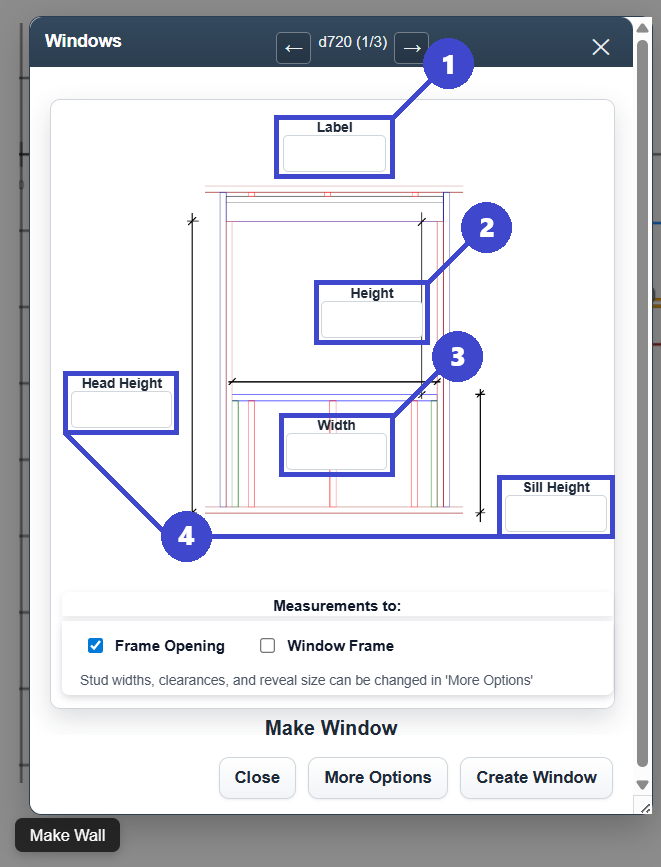
Set opening height and head height to the same value when applicable.
Yes. Use the move workflow after placement.
No. FramingPlans uses one opening workflow for both.
Use the app link below to start directly in FramingPlans. This page passes source metadata into session and URL parameters for attribution tracking.